



When you are migrating a website form one server to another or doing a production release, You often need to set an IP to your /etc/hosts (in windows c:windowssystem32driversetchost) file so that you can test the site without making it live or a DNS change.
A hosts entry will look like this.
`10.10.10.10 example.com www.example.com`
So, When you are testing the www.example.com site from a web browser, You need to make sure that you are getting the page from the IP which is set in /etc/hosts file and not from the DNS address.
To achieve this, you can use extensions/ plug-ins for your browser.
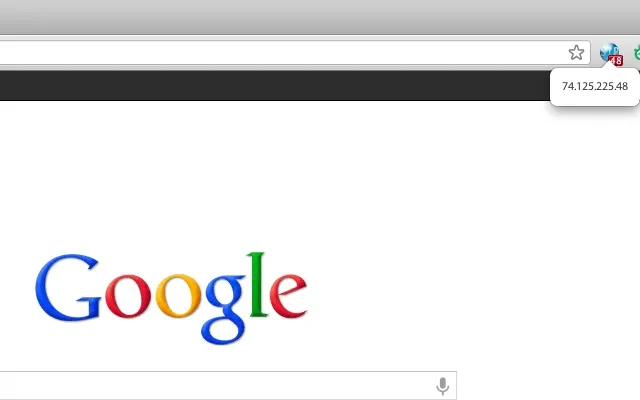
ServerIP plug-in for chrome.
Download from Chrome Web Store
Simple chrome extension that gives you the IP address of the server where the current page was received from – great for switching between development, QC, and live servers that require the same url.
A difference from ShowIP is that Chrome does not leave enough room to automatically show the full IP address. For this reason just the last segment is shown automatically but the full IP address is available by clicking on the icon. No frills, just needed a ShowIP in Chrome.
GitHub listing: https://github.com/jcottrell/ServerIP
ShowIP for Firefox.